
Introduction
Escape from Tarkov is renowned for its oppressive atmosphere and demanding graphical fidelity, which, while immersive, can place a heavy burden on even high-end hardware. Achieving and maintaining a steady frames-per-second (FPS) count is not merely about comfort—it directly impacts reaction times, target tracking, and overall situational awareness in combat. At the same time, visibility settings such as draw distance, level of detail, and post-processing effects determine how easily you can spot opponents through foliage, in shadows, or at extreme ranges.
Striking the right balance between raw performance and crisp clarity requires a nuanced approach: you need to discern which visual features contribute most to gameplay-critical information and which primarily serve aesthetic purposes. In this guide, we’ll delve into the top five in-game settings that have the largest impact on both FPS and visibility, explain why each is important, and provide actionable strategies for fine-tuning your configuration. Whether you’re running a modest gaming rig or a cutting-edge PC, the tips below will help you squeeze every available frame out of your system while preserving—and even enhancing—the clarity you need to survive Tarkov’s unforgiving environments.
Top 5 Settings to Improve FPS and Visibility in EFT
| Setting | Effect on FPS | Effect on Visibility |
|---|---|---|
| Resolution | Lowering resolution can boost FPS dramatically by reducing rendering workload. | Higher resolutions increase clarity and make distant enemies easier to identify, but at the cost of performance. |
| Texture Quality | Reducing texture quality frees up VRAM and increases FPS on lower-end GPUs. | Medium to high texture settings improve environmental detail, which can help you distinguish loot and camouflage in complex scenes. |
| Object LOD (Level of Detail) | Lower LOD levels raise FPS by simplifying distant object meshes. | High LOD ensures that distant objects and enemy outlines are fully rendered, crucial for spotting foes in open areas. |
| Shadows | Disabling or setting shadows to low can yield substantial FPS gains by cutting dynamic lighting calculations. | Shadow detail helps detect movement in dark corners, but turning them off can eliminate distracting artifacts and improve visibility. |
| Anti-Aliasing | Turning off or lowering anti-aliasing reduces post-processing load and smooths out budget GPU performance. | Lower anti-aliasing can sometimes increase sharpness for small, distant targets, though it may introduce jagged edges. |
Why These Settings Matter for Performance
Every one of the settings above directly influences the trade-off between rendering workload and visual fidelity, so understanding their combined effect is critical. Resolution dictates the number of pixels your GPU must draw each frame: halving your resolution can nearly double your FPS on GPU-heavy scenes, yet may obscure distant enemies. Texture quality determines how much VRAM is consumed at runtime, and on systems with limited memory, aggressive texture settings can lead to stuttering frame drops.

Object LOD controls how detailed distant meshes are, which impacts draw calls and polygons processed; reducing LOD can yield a smoother frame rate on maps like Shoreline or Woods where long sightlines are common. Shadows, while adding depth and realism, are among the most expensive effects for dynamic lighting—disabling or minimizing them can grant significant FPS headroom without sacrificing core gameplay information. Finally, anti-aliasing smooths edges but at a substantial performance cost on lower-end GPUs; lowering AA can sometimes enhance the contrast of silhouettes against complex backgrounds, making targets pop. Balancing these parameters allows you to prioritize clarity where it matters—such as enemy outlines and movement cues—while shedding unnecessary graphical overhead to maintain a consistently high and stable FPS, which in turn keeps your inputs and camera movements responsive.
Advanced Graphics Tweaks
- SSR (Screen Space Reflections): Disable or set to low. Reflections from water and shiny surfaces consume GPU cycles without aiding combat awareness.
- Volumetric Clouds: Turn off or reduce density. While visually striking, clouds and atmospheric fog obscure long-range visibility and strain performance.
- Distance Blur: Disable completely. Blurring distant objects may look cinematic but hampers your ability to spot movement at range.
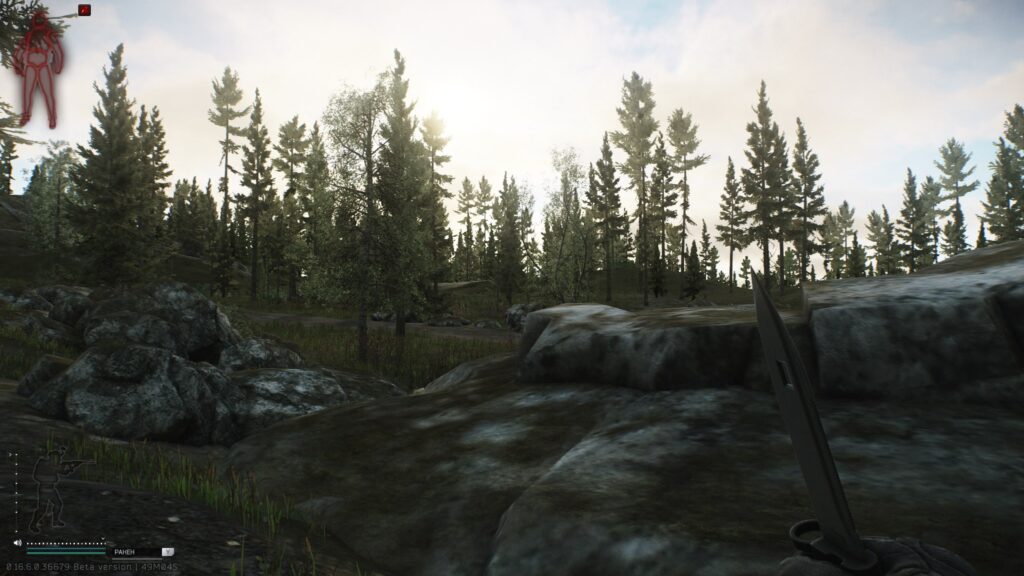
- Chromatic Aberration & Film Grain: Turn off post-processing for a cleaner, sharper image that highlights enemy edges more distinctly.
- Grass Shadows: Set to low or off. Shadow rendering on individual grass blades is costly and rarely contributes significant tactical information.
Hardware and Driver Optimization
- Update GPU Drivers: Install the latest NVIDIA or AMD drivers optimized for Escape from Tarkov to benefit from performance patches and bug fixes.
- Windows Power Settings: Switch to “High Performance” or “Ultimate Performance” mode to prevent CPU and GPU down-clocking during intense gameplay.
- Disable Fullscreen Optimizations: In the game .exe properties, disable Windows fullscreen optimizations and Game Mode to avoid input lag and stuttering.
- Monitor Thermals: Use MSI Afterburner or HWMonitor to ensure your GPU and CPU temperatures remain in optimal ranges; thermal throttling can drastically reduce FPS.
- Overclock with Caution: If you’re comfortable, apply mild GPU or CPU overclocks using MSI Afterburner or Ryzen Master, respectively—but always stress-test first.
Conclusion
Improving both FPS and visibility in Escape from Tarkov requires a strategic combination of in-game and system-level optimizations. By prioritizing high-impact settings—such as resolution, texture quality, LOD, shadows, and anti-aliasing—you can shed excessive GPU and CPU load while preserving the visual cues needed to detect enemies and navigate complex environments. Advanced tweaks, including disabling SSR, distance blur, and grass shadows, further eliminate unnecessary graphical overhead and sharpen your view of the battlefield.
Equally important are hardware and driver optimizations: updating GPU drivers, adjusting Windows power plans, and managing thermals ensure your components run at peak efficiency. When these adjustments are applied in concert, you’ll achieve a more stable frame rate and a clearer, more responsive display that enhances both your reaction time and your situational awareness. Experiment with the settings above to find the ideal balance for your specific hardware configuration, and you’ll gain a definitive edge in Tarkov’s unforgiving raids.